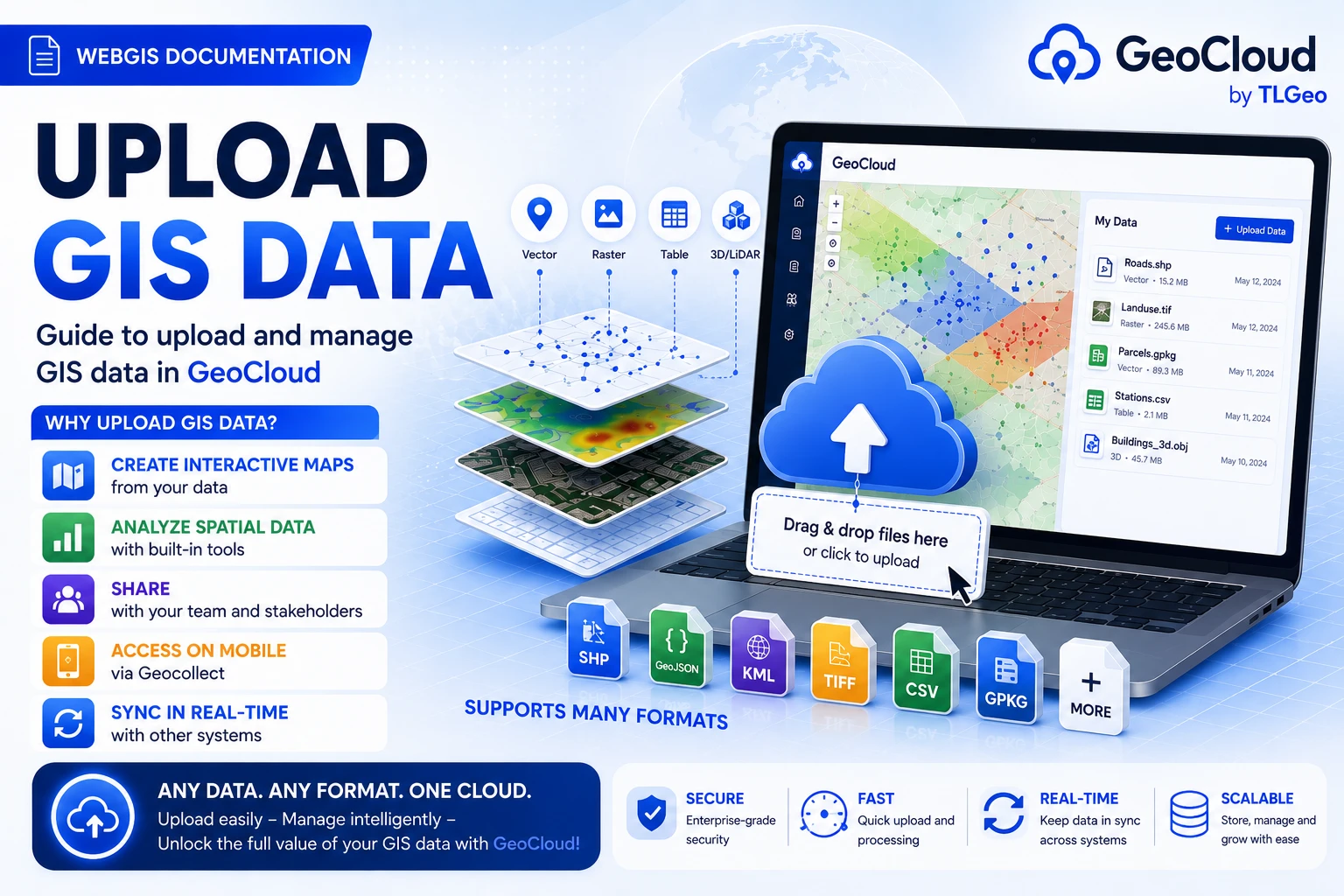
Upload GIS Data
In this guide, you will learn how to upload and manage GIS data in GeoCloud - from basic files to complex datasets.
Why Upload GIS Data?
Uploading data is the first step to start working with GeoCloud. After having data, you can:
- 🗺️ Create interactive maps from your data
- 📊 Spatial analysis with integrated tools
- 🤝 Share with team and stakeholders
- 📱 Access on mobile through Geocollect
- 🔄 Real-time sync with other systems
Supported Formats
Vector Data
Shapefile (.shp)
- Main files:
.shp,.shx,.dbf - Optional:
.prj,.cpg,.sbn,.sbx - Important: Zip all related files
GeoJSON (.geojson)
- JSON format for geographic data
- Suitable for web applications
- UTF-8 encoding support
KML/KMZ (.kml, .kmz)
- Google Earth format
- Includes styling information
- KMZ is compressed KML
GPX (.gpx)
- GPS Exchange Format
- Suitable for tracks and waypoints
- From mobile GPS devices
Raster Data
GeoTIFF (.tif, .tiff)
- Standard GIS format
- Includes coordinate system
- Multi-band imagery support
Database Connections
PostGIS
- PostgreSQL with spatial extension
- Direct connection support
- Real-time data sync
Upload Process
Step 1: Prepare Data
Check data:
- Coordinate system (CRS) correct
- Complete file structure
- No missing files
- Reasonable file size
Step 2: Upload to GeoCloud
- Open project to upload data
- Click “Data” tab
- Click “Upload” or ”+”
Select upload method:
- Drag & Drop: Drag file to upload area
- Browse: Click browse to select file
- URL Import: Enter online data URL
- Database: Direct database connection
Step 3: Configure Import
Automatic detection:
- Auto-detect coordinate system
- Preview data structure
- Check encoding (UTF-8 recommended)
- Validate geometry
Common Issues
File Format Errors
Shapefile Issues
- Missing required files (.shx, .dbf)
- Unsupported geometry type
- Character encoding error
Solution
- Ensure all shapefile components are present
- Use UTF-8 encoding
- Add .prj file for coordinates
Coordinate System Errors
- Missing projection information
- Wrong EPSG code
Geocollect Mobile Integration
GeoCloud integrates with Geocollect Mobile app:
Field Data Collection
- Sync data from mobile app
- Offline data collection
- Photo and multimedia
- Accurate GPS tracking
Data Collection Workflow
- Create form in GeoCloud COLLECT project
- Deploy form to mobile app
- Collect data in the field
- Sync to GeoCloud when internet available
- Process and analyze data
Next
👉 Map Interface - Learn how to use Map Viewer